How to Restore Old Photos with AI: Step-by-Step Guide
Learn how to restore old photos with AI: scan them the right way, fix scratches and fading, add color, and check every face before you print or share.
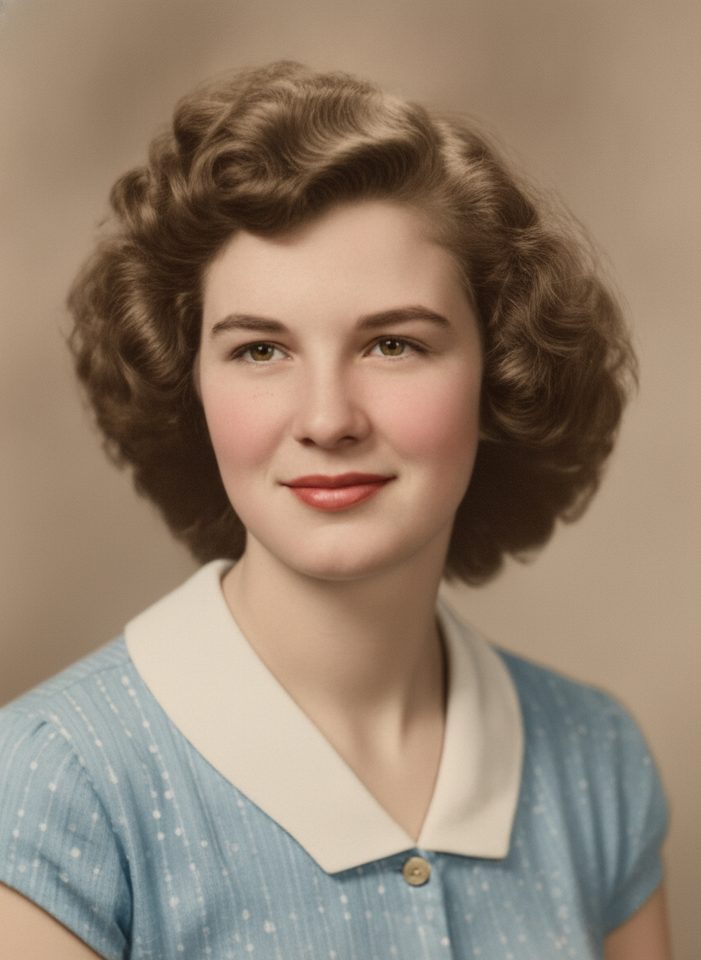
If you want to know how to restore old photos without spending an evening in a photo editor, the process comes down to three things: make a good digital copy, let AI repair the damage, then check the result carefully. This guide walks through each step, explains when to restore and when to colorize, and is honest about what AI can and can't do with a damaged print.
Why old photos fade, crack and stain
Prints are chemical objects, and they keep changing long after they leave the lab. The most common kinds of damage are:
- Fading and color shifts. The dyes in color prints break down at different speeds. Cyan often goes first, which is why so many prints from the 1970s and 1980s now look red or orange. Black-and-white prints tend to yellow or turn brown.
- Scratches, creases and cracks. Years of handling, tight albums and dry air make the image layer brittle. Folds turn into white lines that run straight through faces.
- Silvering. Old black-and-white prints can develop a bluish, mirror-like sheen in the dark areas, most visible at an angle. It happens when silver in the image moves to the surface.
- Water damage and mold. Floods, damp basements and leaky boxes leave tide lines, spots and patches where the image has lifted or stuck to glass or to another photo.
- Album damage. Self-adhesive "magnetic" album pages from the 1970s and 1980s yellow over time and can bond to the back of the print.
None of this reverses on its own, and most of it gets worse. That is the real reason to digitize your photos now, even before you think about restoration.
Step 1: Digitize the photo first
The AI can only work with what your scan captured. A sharp, evenly lit copy gives it more real detail and less to guess.
With a flatbed scanner:
- Clean the glass with a dry microfiber cloth. Every speck of dust on the glass ends up in the scan.
- Brush loose dust off the print with a soft brush or a blower. Don't wipe it with water or cleaning sprays.
- Scan at 600 dpi or more for small prints. For wallet-size photos and small group shots, 1200 dpi gives each face more pixels to work with.
- Save a high-quality master file, such as TIFF or a maximum-quality JPG, and turn off any automatic "dust removal" or sharpening in the scanner software so you keep the untouched original.
With a phone:
- Shoot in daylight near a window, out of direct sun, with the flash off.
- Turn off overhead lights and tilt the print slightly if you see glare. Glossy prints reflect everything.
- Hold the phone parallel to the photo, directly above it, so the edges stay straight.
- Use a scanning app, such as Google PhotoScan or the document scanner built into your phone, to correct perspective and reduce glare.
- Tap to focus on a face and fill the frame with the photo.
If a print is stuck to glass or to an album page, scan it where it is. Pulling it off can tear the image layer.
Never use the original print as the only copy. Scan it, back up the scan, and do all your edits on copies.
Restore or colorize: which one do you need?
The Old Photo Restoration tool has three modes, and choosing the right one matters more than any other setting.
- Restore repairs scratches, dust, stains, small tears, fading and blur, and keeps the photo black and white (or in its original tone). Use it when you want a clean version of the photo as it was.
- Colorize only adds color and is told not to change the composition or details. It suits photos that are already in good shape.
- Restore + colorize does both in one step. Use it for damaged black-and-white photos when you want a color result.
If the photo is in good condition and you know some of the original colors, the Photo Colorizer is the better fit. It accepts optional instructions, such as "her dress was dark green" or "his uniform was navy blue", and the AI follows them.
For a damaged photo where you also know the colors, you can split the job: run Restore first, then give the repaired image to the Photo Colorizer with your color notes. That costs two generations, but it gives you a clean black-and-white version to keep and more control over the colors.
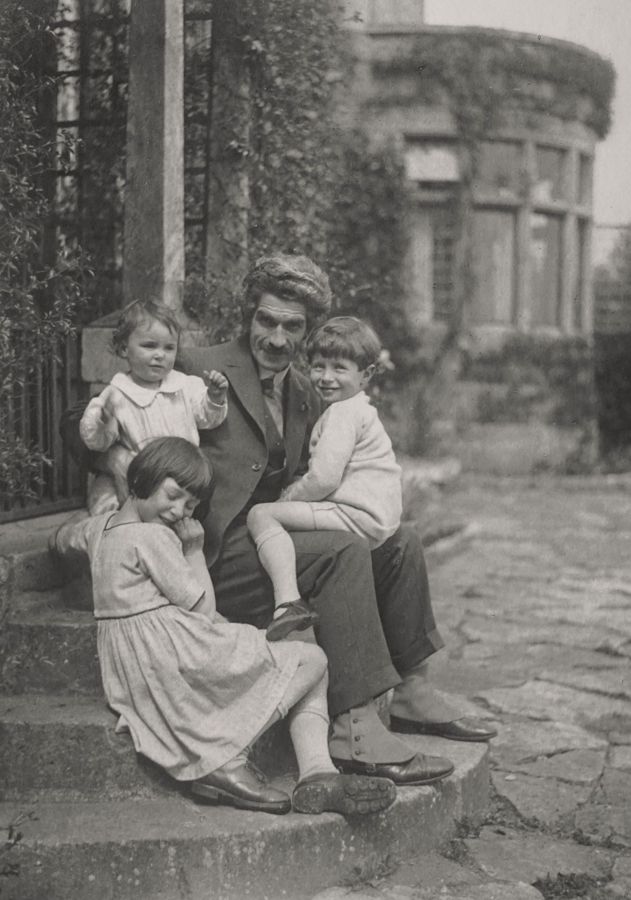
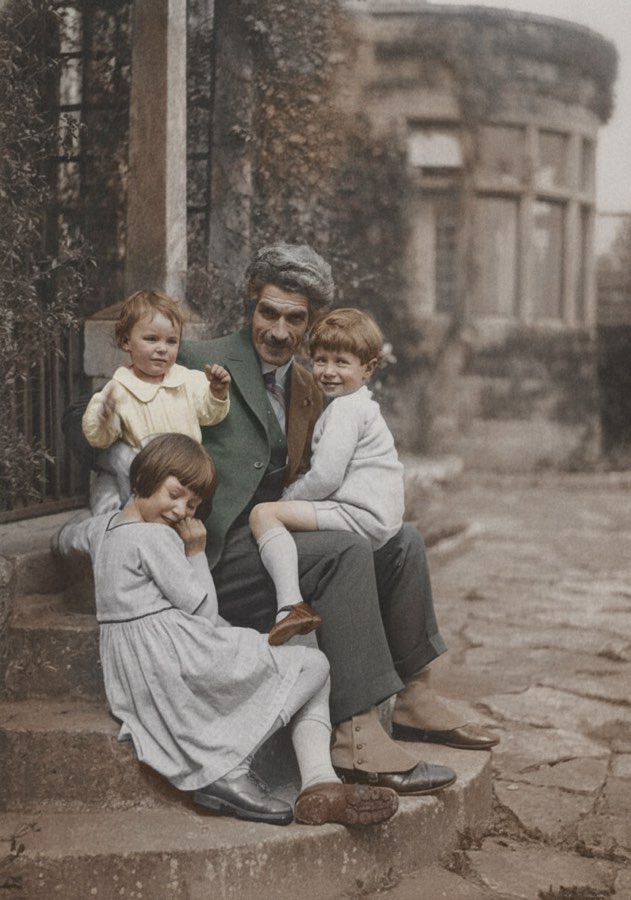
The family photo above was in good condition, so it only needed color. The cracked portrait below needed both repair and color.
How to restore old photos with AI, step by step
Once you have a good scan, the restoration itself is short:
- Prepare the file. Crop away the scanner bed or album page, but keep the photo's own border if you like it. Rotate it upright. Uploads can be JPG, PNG or WebP, up to 10MB, so if your master scan is a large TIFF, export a high-quality JPG copy to upload.
- Open Old Photo Restoration and upload the copy.
- Choose a mode: Restore, Colorize, or Restore + colorize.
- Generate. Each image costs 30 credits. If a generation fails, the credits are refunded automatically.
- Download the result and compare it with your scan side by side, zoomed in. The next section explains what to look for.
- Fix what's left. If a small problem remains, the Nano Banana editor can make a further edit from a plain text instruction, such as "remove the white crease across the sky" or "make the background a plain light gray". To take out something specific, like a sticker, a stain on the wall or a stray finger at the edge of the frame, describe it to the Object Remover. Our guide to Nano Banana prompts shows how to word these instructions.
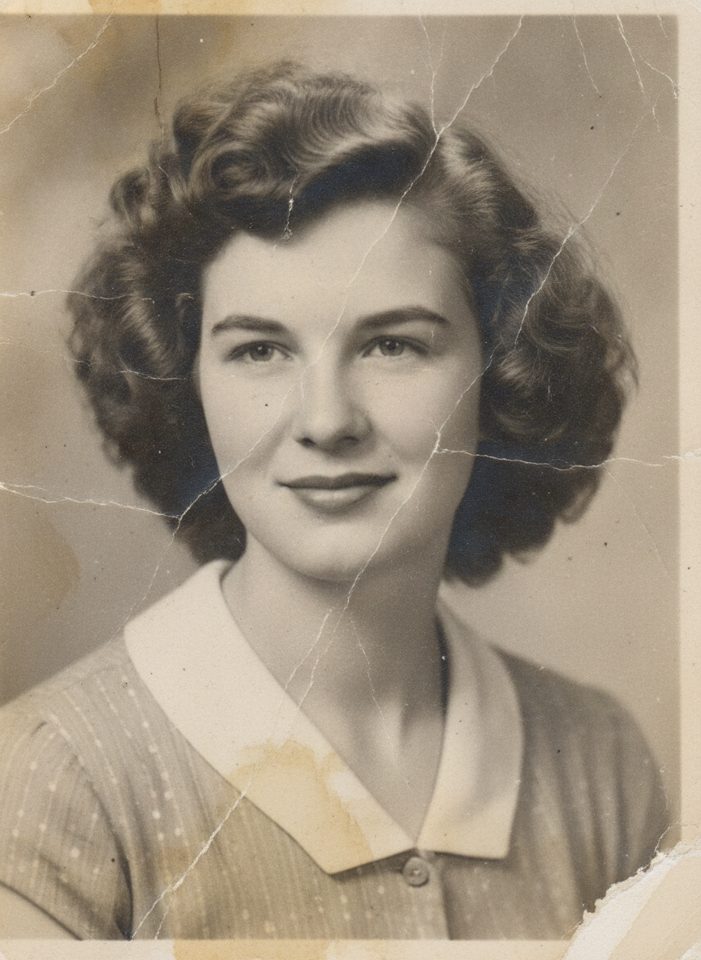
This is the scan that produced the cover image at the top of this guide, using Restore + colorize. The cracks, the stain on the collar and the torn corner were all repaired in one pass.
Check the result before you keep it
A restored photo can look convincing at a glance and still be wrong in the details. Zoom in and check:
- Faces. Does each person still look like themselves? Compare the shape of the nose, mouth, jaw and ears with the original. Watch for skin that has been smoothed too much, faces that look younger or more modern, and moles or scars that have vanished.
- Eyes. Look for matching catchlights and a natural gaze. On small or blurry faces, eyes are often the most invented part.
- Hands. Count fingers and check rings, watches and anything being held.
- Text. Shop signs, handwriting, dates and names on uniforms are easy to garble. Compare every letter with the scan.
- Backgrounds. Wallpaper patterns, windows, buildings and trees can be simplified or changed.
Keep one rule in mind: AI reconstructs missing areas, it doesn't recover them. Where a tear ran through an eye or a corner was missing, the AI paints a plausible guess. It cannot know what was really there. If a face comes out looking like someone else, try again, try Restore without color, or keep the original scan as the record.
Colors are an interpretation, not a record
A black-and-white photo stores brightness, not color. A red dress and a green dress of the same brightness look identical in gray, so the AI has to choose. It picks colors that are realistic for the scene, but they are a plausible interpretation, not historical fact.
You can see this in the cover image: the AI chose a light blue dress. The real dress could have been any color with that tone.
If accuracy matters, ask relatives what they remember and write it into the Photo Colorizer's instructions. For family history work, keep the restored black-and-white version as your reference copy and label colorized versions as colorized.
Tips for group photos and very small faces
Group photos are the hardest case, because each face may be only a few millimeters wide on the print.
- Scan higher. For small group prints, 1200 dpi or more gives each face more real detail.
- Restore a crop. If one or two faces matter most, crop them from your high-resolution scan and restore that crop on its own. The face then fills more of the image the AI works on. Check the result as carefully as the full photo.
- Check every face. The people at the back and the edges are the most likely to come out invented or blended.
- Don't expect miracles from a blur. If a face is a smudge in the original, the AI will draw a face, but it won't be a reliable likeness.
Printing and sharing your restored photos
Before you order a print, view the file at 100% zoom. If it looks soft on screen, choose a smaller print size. Large prints make the AI's guesswork easier to spot. Matte paper is more forgiving of small flaws than glossy paper.
When you share restored photos in a family group or on social media, say that they were restored or colorized with AI. Put names, places and dates in the caption or the file name so that information survives when the photo gets passed around.
Keep the original scan
The restored image is a new version of your photo, not a replacement for it.
- Keep the untouched master scan next to the restored file, with clear names like
1952-wedding-scan.tifand1952-wedding-restored.jpg. - Back everything up in at least two places, for example an external drive and a cloud service.
- Store the physical print in an archival sleeve or box, in a cool, dry, dark room. Avoid attics and basements.
Tools keep improving. With a good original scan, you can redo the restoration in a few years without handling the print again.
FAQ
Can AI restore a photo with large missing pieces?
It can fill them in, but the filled area is reconstructed, not recovered. Small tears and missing corners usually look natural. When a large part of a face is gone, the result may not resemble the person, so compare it with other photos of them.
Will the restored photo still look like my relative?
The tool is instructed to keep each person's features, and on clear faces it usually does. Small, blurry or badly damaged faces have less real detail, so check them closely. If someone looks different, try again or keep the original scan.
What happens to the photos I upload?
Your upload is only used to create your result. Uploaded originals are deleted from the processing service within 24 hours, so keep your own copy of the scan and download every result you want to keep.
How much does it cost to restore a photo?
Each image costs 30 credits, whichever mode you choose. If a generation fails, the credits are returned automatically. You can compare plans and credit packs on the pricing page.
Pick one photo you care about, scan it well, and try Pictura's Old Photo Restoration. Then check every face against the original before you print it.