Nano Banana Prompts: 40 Examples for Editing Photos
Nano Banana prompts for editing photos: a simple four-part formula and 40 copy-ready examples for backgrounds, objects, light, products and portraits.
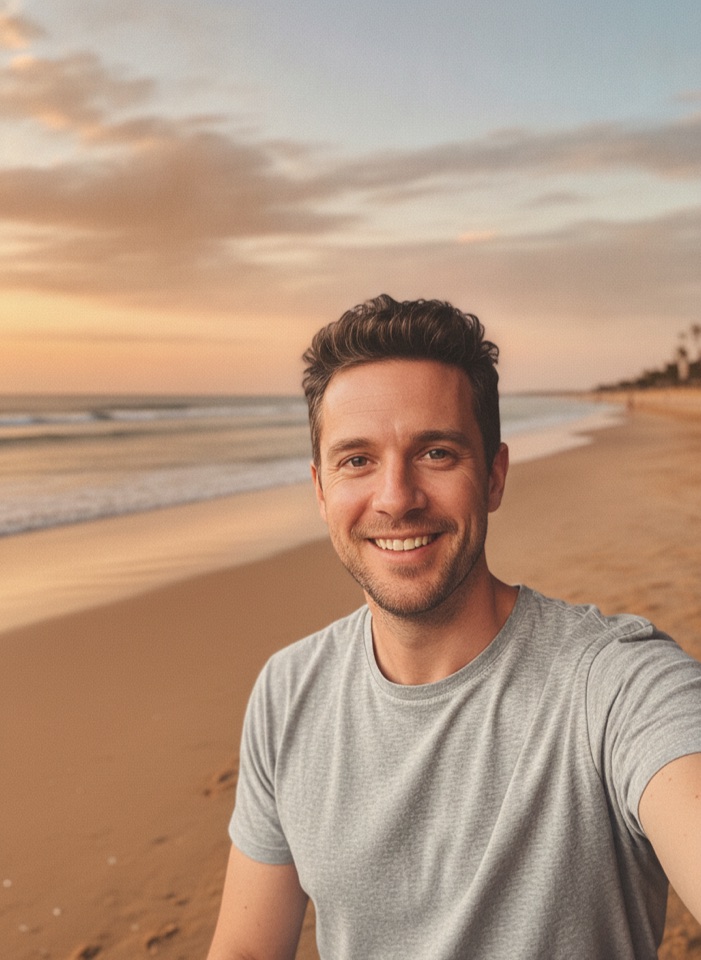
Good Nano Banana prompts are short, specific and clear about what should stay the same. This guide gives you a simple formula for edit instructions, then 40 copy-ready examples grouped by task: backgrounds, objects, light and weather, product photos, portraits, art styles and old photo repair. Each one works on a single uploaded photo.
What is Nano Banana?
Nano Banana is the nickname of Gemini 2.5 Flash Image, Google's model for generating and editing images. The name was its codename in public testing, before Google announced it.
It became popular for editing. You upload a photo, describe a change in plain words, and the model edits that part while trying to keep the rest of the picture consistent. There are no masks or layers, so the prompt is your only control. It is not pixel-perfect, though: small details such as label text can shift, so always check the result.
A simple formula for Nano Banana prompts
If you are wondering how to write prompts for Nano Banana, use four parts, in this order:
- What to change. The action: replace, add, remove, recolor, turn into.
- Where. The part of the photo: the background, the sky, the left side of the table.
- Style and light. How the new part should look: soft morning light, matte black, watercolor.
- What to keep. What must not change: the person's face, the product label, the composition.
Put together, it reads like a note to a retoucher:
Replace the gray sky with a warm sunset sky with pink clouds, add matching warm light on the buildings, and keep the buildings, street and people unchanged.
You don't always need all four. "Remove the trash can on the left" is a complete prompt. But when a result changes too much, the missing piece is almost always part four.
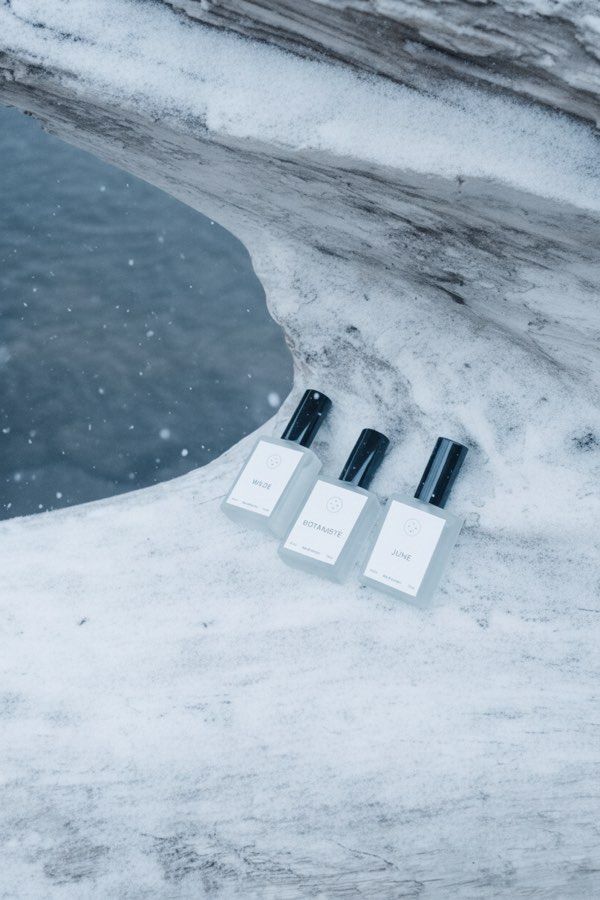
To use the Nano Banana prompt examples below, copy one, replace the details with your own and keep the "keep" part.
Background and scene prompts
Name the new setting, describe the light so the subject fits in, and protect the subject. For a new backdrop from ready-made scenes, the AI background changer does the same job with fewer words.
- Beach at sunset: "Change the background to a quiet beach at sunset with soft golden light. Keep the person, their pose and their clothes the same."
- Clean studio: "Replace the background with a plain light gray studio backdrop and a soft shadow under the subject. Keep the subject unchanged."
- City at night: "Put the subject on a city street in the evening with blurred shop lights behind them. Match the light on the subject to the street."
- Cozy cafe: "Move this scene into a cozy cafe with wooden tables and warm lamps in the background, slightly out of focus. Keep the people unchanged."
- New window view: "Replace the view through the window with snowy mountains under a clear blue sky. Keep the room and the window frame as they are."
- Tidy room: "Replace the messy background with a minimal living room with a white wall and a green plant. Keep the person in front unchanged."
Prompts to add or remove objects
Name the object and where it is, and ask the model to fill the gap with what would naturally be there. To clear people and clutter, you can also use the object remover. Only edit photos you have the rights to; removing someone else's watermark is not allowed.
- Remove a passerby: "Remove the person walking in the background on the right and fill the area with the street behind them."
- Clear a desk: "Remove the cables, papers and cups from the desk. Keep the laptop, the lamp and the desk surface unchanged."
- Clean up the sky: "Remove the power lines crossing the sky. Keep the sky color and the rooftops the same."
- Add a plant: "Add a tall green plant in a white pot in the empty corner on the left, with a shadow that matches the room light."
- Add a coffee cup: "Add a cup of coffee on a saucer next to the book on the table, in the same soft light as the rest of the photo."
- Add string lights: "Add warm string lights along the top of the fence, switched on, with a soft glow on the wall below."
Light, weather and season prompts
Describe the new light, its direction and color, and ask for the layout to stay put.
- Day to night: "Turn this daytime street into night. Switch on the street lamps and shop windows, darken the sky, and keep every building and car in place."
- Golden hour: "Change the lighting to golden hour: a low warm sun from the left, long soft shadows and a slightly orange sky."
- Summer to winter: "Turn this summer scene into winter. Cover the ground, roofs and trees with fresh snow and add light falling snow. Keep the layout the same."
- Autumn colors: "Change the season to autumn. Turn the leaves orange and red and scatter a few fallen leaves on the path."
- Rainy evening: "Make it a rainy evening with wet pavement, reflected lights and a gray-blue sky. Keep the people and the street unchanged."
- Morning fog: "Add a light morning fog over the lake and the distant trees. Keep the boat and the dock in front sharp."
Product photo prompts
For products, the shape and label matter most, so always protect them. Then describe the surface, the light and a few props. To pick from preset scenes instead, use the AI product photo tool.
- White background: "Place the product on a pure white background with a soft natural shadow underneath. Keep the product, its label and its colors exactly the same."
- Marble countertop: "Put the bottle on a white marble countertop in morning window light, with a soft shadow falling to the right. Keep the label text unchanged."
- Outdoor scene: "Place the sneaker on a mossy rock in a forest with soft daylight and a blurred green background. Keep the shoe's shape, colors and logo."
- Kitchen counter: "Put the jar on a wooden kitchen counter with a few lemons and a linen towel nearby, in bright daylight. Keep the jar and label unchanged."
- Holiday look: "Place the gift box on a table with pine branches, small warm lights and a dark green background. Keep the box unchanged."
- New color option: "Change the color of the mug to matte navy blue. Keep its shape, the logo and the background the same."
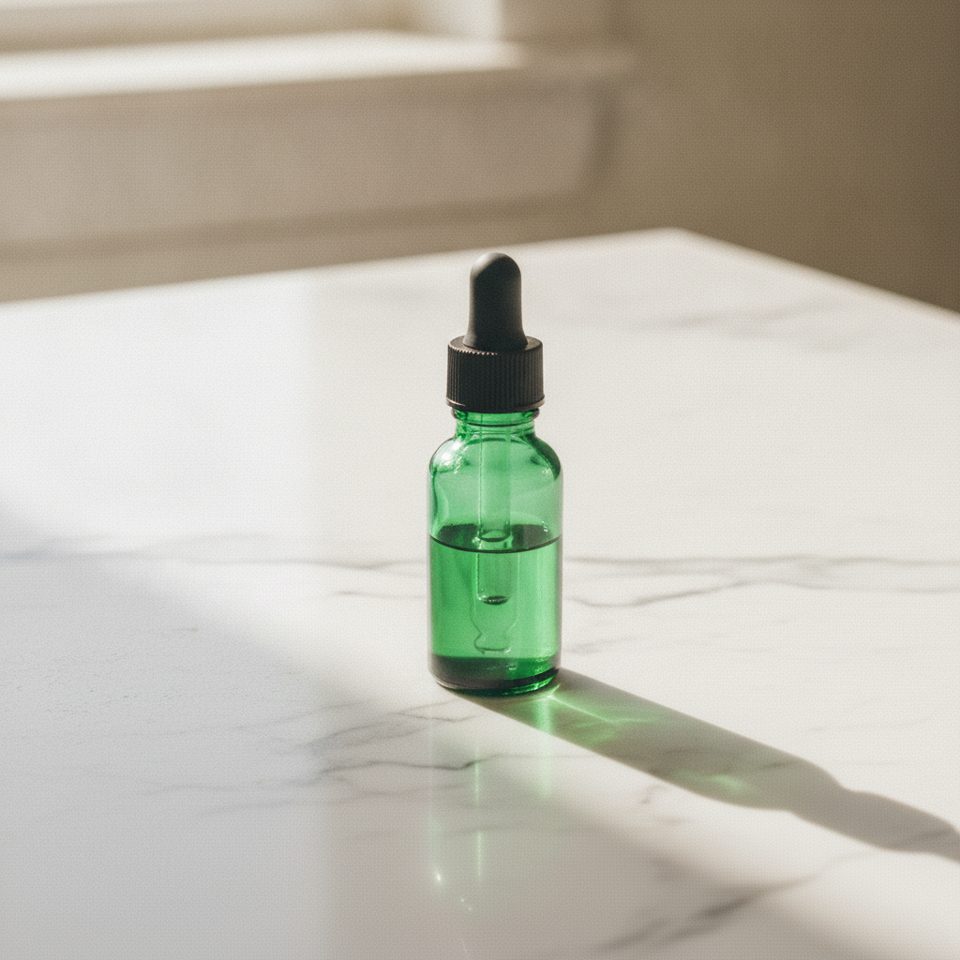
Small print can shift, so check the label against the real product before you list the photo.
Portrait prompts: outfit, hair and lighting
Portrait edits should change what a person wears or how the photo is lit, never who the person is. These prompts are not for face swaps. Edit only photos of yourself or of people who agreed, and always say the face must stay the same. For guided versions, try the AI clothes changer and the AI hairstyle tool.
- Business outfit: "Change the person's T-shirt to a navy blazer over a white shirt. Keep their face, expression, hair and the background unchanged."
- Outfit color: "Change the color of the dress to deep emerald green. Keep the fabric texture, the fit and everything else the same."
- New haircut: "Give the person a shoulder-length bob with a side part. Keep their face, skin tone and clothes exactly the same."
- Hair color: "Change the hair color to a natural copper red. Keep the haircut, the face and the lighting the same."
- Studio lighting: "Relight the portrait with soft studio light from the left and a plain warm gray background. Keep the face and expression unchanged."
- Tidy details: "Remove the wrinkles from the shirt and the stray hairs on the shoulders. Keep the face and background unchanged."
Style transfer prompts
Style prompts change the whole picture, so name the style and say what should stay recognizable. For anime looks with preset styles, try photo to anime.
- Anime: "Turn this photo into a hand-drawn anime illustration with clean line art and soft cel shading. Keep the same pose and composition."
- Watercolor: "Repaint this photo as a loose watercolor painting on textured paper, with soft edges and light washes of color."
- Film look: "Give this photo the look of 1990s 35mm film: warm tones, slightly faded blacks and fine grain. Don't change anything in the scene."
- Pencil sketch: "Turn this photo into a detailed pencil sketch on white paper with graphite shading. Keep the proportions of the building."
- Oil painting: "Repaint this landscape as an oil painting with visible brush strokes and rich colors, keeping the same composition."
Prompts for fixing old photos
Ask for repair, not reinvention, and tell the model to keep faces and the composition. For guided tools, use photo restoration for damage and the photo colorizer for black and white prints.
- Scratches and dust: "Restore this old photo: remove the scratches, dust spots and creases. Keep every face and the composition the same."
- Faded colors: "Fix the faded colors in this old print. Bring back natural contrast and skin tones without changing anything in the picture."
- Colorize: "Colorize this black and white photo with natural, realistic colors that fit the era. Keep all details and faces unchanged."
- Torn corner: "Repair the torn top-left corner by rebuilding the missing part of the wall and sky. Keep the rest of the photo as it is."
- Soft focus: "Make this slightly blurry photo sharper and clearer, especially the faces, without changing anyone's features."
Restoration rebuilds missing detail rather than recovering it, so compare faces with the original.
Tips for better Nano Banana prompts
- One change per edit. Background first, then light, then props. Upload each result again for the next step.
- Point to the spot. "The cup on the right" or "the wall behind the sofa" cuts down on guessing.
- Describe the light. A new background with the wrong light looks pasted on. "Soft daylight from the window" fixes most of it.
- Use concrete words. "Matte navy blue" beats "a nicer color".
- Try twice before rewriting. The same prompt can give different results, so rerun a close one before changing the wording.
Common mistakes
- Not saying what to keep. The model may change faces, labels or the layout along with your edit.
- Stacking many edits in one prompt. Some get skipped, others blend together.
- Vague words. "Make it pop" gives the model nothing to act on.
- Asking for exact text. Small text often comes out changed. Add it in a design tool afterward.
- Breaking the usage rules. Sexual content, real people in misleading or harmful scenes and other people's watermarks are off limits. Such requests are blocked before any credits are charged.
Nano Banana prompt FAQ
Do prompts have to be in English?
No. The model understands many languages, including Chinese. Clear, specific wording matters more than the language.
How long should a prompt be?
One to three sentences covers most edits: what to change, where, how it should look and what to keep. Longer prompts tend to mix several edits and give less predictable results.
Why did the model change parts I didn't mention?
It redraws the image as a whole, so nearby areas can shift. Name those parts in a "keep" clause, make the change smaller, or split it into steps.
How much does each edit cost?
Each edit costs 30 credits, and failed generations are refunded automatically. See pricing for plans and credit packs.
Try these prompts on your own photo
Pick a prompt, swap in your own details and run it in the Nano Banana photo editor on Pictura, an independent service that runs Google's model through its API. Upload your photo, paste the prompt, check the result, then upload it again for the next change.