Remove Objects from Photos with AI
Type what you want gone, like a stranger or a trash can, and the AI removes it and fills in the background.

 BeforeAfter
How to remove an object from a photo
- 1
Upload the photo you want to clean up.
- 2
Describe what to remove and where it is, for example “the man in the red jacket on the right.”
- 3
Download the result, or upload it again to remove something else.
Remove objects by describing them
This tool lets you remove an object from a photo without a brush, a mask or editing skills. Upload one photo and type what should go, for example “the two people in the background and the trash can on the left.” The AI removes those things, fills the area with background that matches the rest of the scene, and is instructed to keep everything else unchanged, including faces. It works best on clear, distinct objects you can name and locate, such as tourists, a parked car, a bag on the floor or a stray chair. Very small or ambiguous items may need a clearer description, or a second pass on the result. Check the edited area before you use the photo.
Why use an AI object remover
Describe it, no brush needed
There is no painting or masking. Name the object and say where it is, and the AI finds it in the photo, so you don't need any editing skills.
Background filled to match
The removed area is filled with background that fits the scene, such as more sand, wall, grass or sky, so the photo looks complete. Zoom in to check the filled area.
The rest of the photo stays put
The tool is instructed to keep everything you didn't mention unchanged, including the people you want to keep and their faces. Check faces and fine details before you share.
Several objects in one go
List more than one thing in a single instruction, such as two strangers and a trash can. If anything is missed, upload the result again and describe what is left.
When to use an object remover
Travel photos
Remove people from a photo of a landmark, a beach or a busy street, so the view and the people you traveled with are the focus.
Product and resale photos
Clear cables, boxes or a stray hand from product shots and secondhand listings, so buyers see only the item for sale.
Room and rental photos
Take out temporary clutter like trash cans, laundry or shopping bags before you post a rental listing or share a room you just finished decorating.
Everyday photos
Remove unwanted objects like a photobomber, a trash bin or a street pole from family photos, portraits and pet pictures you want to keep or print.
Tips to remove an object from a photo cleanly
Be specific about what and where. “The woman in the blue coat on the left” works much better than “the person.” Mention color, size and position.
If the photo has several similar things, say which to remove and which to keep, for example “remove the two people behind the bench, keep the couple in front.”
Large objects in front of simple backgrounds such as sky, sand or a plain wall usually come out cleanest. If a tiny item is missed, upload the result and run a second pass.
To change something rather than remove it, such as replacing the sky or adding a prop, use the Nano Banana AI Photo Editor instead.
Simple, credit-based pricing
Every tool runs on the same credits. One image is 30 credits, and failed generations are refunded.
Starter
For occasional photos
- About 75 images per month
- 2,250 credits
- All 15 AI image tools
- Commercial use
- Failed generations refunded
Plus
For busy shops and creators
- About 150 images per month
- 4,500 credits
- All 15 AI image tools
- Commercial use
- Failed generations refunded
- Priority support
Business
For teams, agencies and high volume
- About 300 images per month
- 9,000 credits
- All 15 AI image tools
- Commercial use
- Failed generations refunded
- Dedicated support
Monthly and yearly plans renew automatically at the end of each period until you cancel, and you can cancel anytime in Settings. Credit packs are one-time purchases that never renew; their credits last 1 year. Prices include tax.
AI object remover FAQ
- Do I need to brush over the object?
- No. There is no brush or mask. You describe what to remove in words, such as “the trash can on the left,” and the AI finds it in the photo. Descriptions with color and position work best.
- Can I remove people from a photo?
- Yes. Describe them, for example “the two tourists in the background,” and the tool fills the space with matching background. It is instructed to leave the people you want to keep, and their faces, unchanged.
- What if it misses something or removes the wrong thing?
- Make the description more precise with color, size and position. If something small is left, upload the result again and ask for only that item. Each new generation costs 30 credits.
- Can I remove a watermark or a logo?
- No. Requests to remove watermarks, logos, signatures or copyright notices are blocked before any credits are charged. These marks show who made or owns an image. If the image is your own, start from the original file without the mark.
- What kind of photo works best?
- A sharp photo where the object is clearly visible and easy to describe. Large, distinct objects in front of simple backgrounds are the easiest. Very small items, or objects that overlap the people you want to keep, are harder.
- How much does it cost to remove an object?
- Each image costs 30 credits, shown on the Generate button. If a generation fails, the credits are refunded automatically. Every result is saved in My Images, so you can download it again later.
- Can I use the edited photo commercially?
- Yes, you can use the results commercially, subject to our terms, for example in product listings, rental ads or marketing. Make sure you have the rights to the original photo, and show items and rooms as they really are.
- Are my photos private?
- Your uploads are only used to create your result. Uploaded originals are deleted from the processing service within 24 hours. Prompts and images are moderated, and photos of people need consent from everyone in them.
More AI tools
AI Image Generator
Describe what you want and get a high-quality image in seconds.
AI Product Photo
Turn a simple product snapshot into a studio-quality photo for your store.
Old Photo Restoration
Remove scratches and fading, sharpen faces and add natural color to black-and-white photos.

AI Headshot Generator
Get a professional headshot for LinkedIn or your resume from one selfie. No photographer needed.
Nano Banana AI Photo Editor
Upload a photo, describe the change in plain words, and get the edited image in seconds.
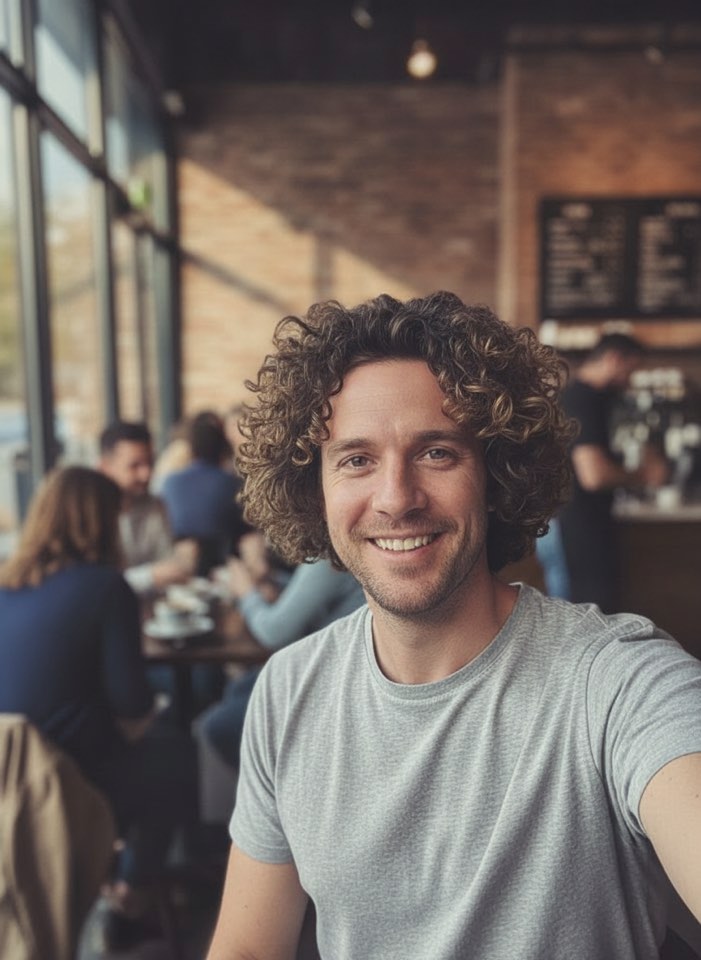
AI Hairstyle Changer
Upload a photo and see how a new haircut would look on you before you visit the salon.
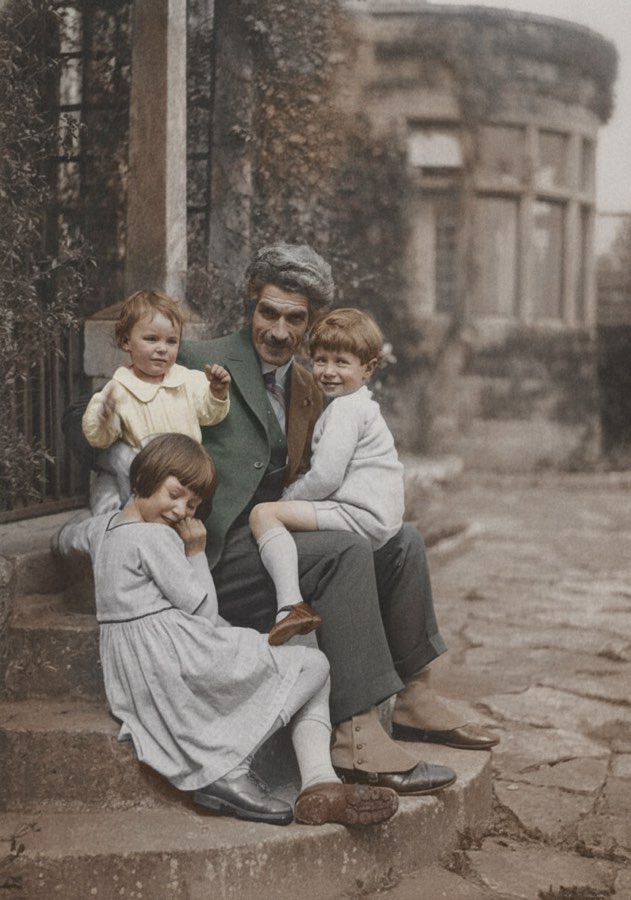
AI Photo Colorizer
Add realistic, natural color to old black-and-white photos in seconds.
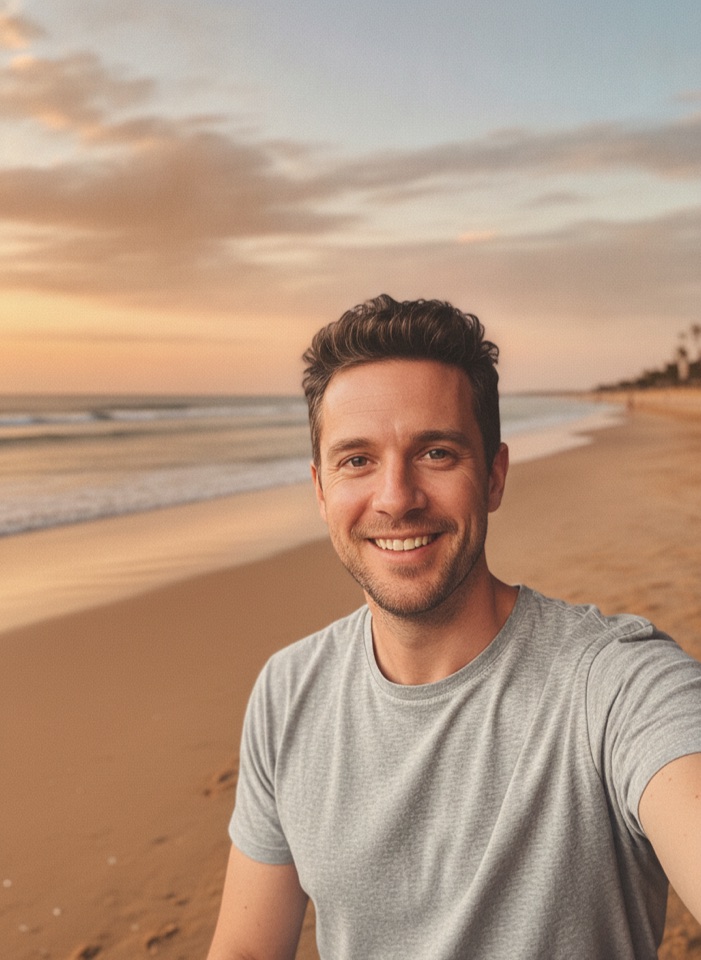
AI Background Changer
Upload a photo, pick a new background or describe your own, and the subject is kept as it is.

AI Clothes Changer
Upload a photo of yourself and try a new outfit. Pick a preset or describe the clothes in your own words.
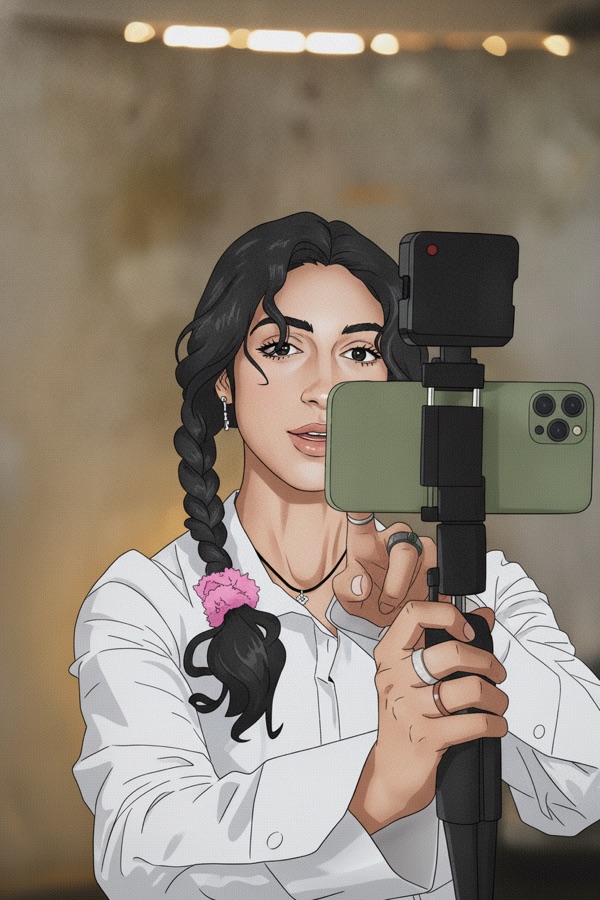
Photo to Anime
Upload a photo and redraw it as anime, manga or a 3D cartoon, keeping the pose, outfit and composition of the original.

GPT Image 2
Write a prompt, add a reference photo if you want to edit one, and get a 1K image from OpenAI's GPT Image 2.
GPT Image 2.5
Write a prompt or upload a photo to edit, and get a 1K image from Sunburst, the quality version of OpenAI's GPT Image 2.5.
Nano Banana 2
Google's fast Gemini 3.1 Flash Image model. Write a prompt, add a reference photo if you like, and get a new image at 30 credits.
Nano Banana Pro
Google's Gemini 3 Pro Image for the images that matter most: more detail, readable text and steadier edits. 60 credits per image.