AI Product Photography: Store-Ready Photos from Your Phone
AI product photography turns a phone snapshot into clean e-commerce product images. Learn how to shoot the source photo, pick a scene and check results.
AI product photography lets you take a plain snapshot of an item on your kitchen table and turn it into a clean, consistent image for your store, without renting a studio or hiring a photographer. The AI handles the background, the lighting and the shadows. You still handle the parts that decide whether the result is usable: a good source photo, the right scene for the job, and a careful check before anything goes live. This guide walks through all three, plus the marketplace rules and honesty checks that keep your listings out of trouble.
Why product photos matter so much
Online shoppers can't pick up your product, turn it over or feel the material. The photos do that job. They are usually the first thing a shopper sees in search results, and the main thing they use to decide whether to click.
Good e-commerce product images do three things:
- They show exactly what the buyer gets. Shape, color, size and what's in the box.
- They look like they belong together. A catalog with matching backgrounds and lighting looks like a real brand, not a garage sale.
- They answer questions before anyone asks. A side view, the back label, a close-up of the texture.
The problem is cost. Booking a shoot for every new item, color or seasonal campaign adds up fast. AI product photos fill that gap: shoot once with your phone, then restage the product as often as you need.
How to take product photos with your phone
The AI can replace a messy background, but it can't invent detail your photo never captured. A blurry or dark source photo gives you a blurry or dark product in a nicer setting. Spend five minutes on the source photo and everything after gets easier.
- Use soft window light. Put the product near a window, out of direct sun. An overcast day is ideal. Turn off overhead lights so you don't mix warm and cool light, and skip the flash, which causes hard glare on glass, metal and glossy packaging.
- Use a plain surface. A sheet of white paper, a matte tabletop or a piece of poster board is enough. The background will be replaced, but a simple one makes it easier for the AI to see where the product ends.
- Fill the frame. Move closer instead of zooming digitally. The product should take up most of the photo, with a little space around the edges so nothing gets cut off.
- Get sharp focus. Tap the product on screen to focus, hold the phone steady with both hands, and zoom in to check the shot before moving on.
- Clean the product. Wipe off dust, fingerprints and lint, and peel off price stickers. Small marks are easy to miss on a phone screen and very obvious on a large monitor.
- Shoot several angles. Front, back, side, three-quarter view, top, plus a close-up of any label or detail. Each angle can become a separate image in your listing.
Uploads can be JPG, PNG or WebP, up to 10MB, which covers a normal phone photo.
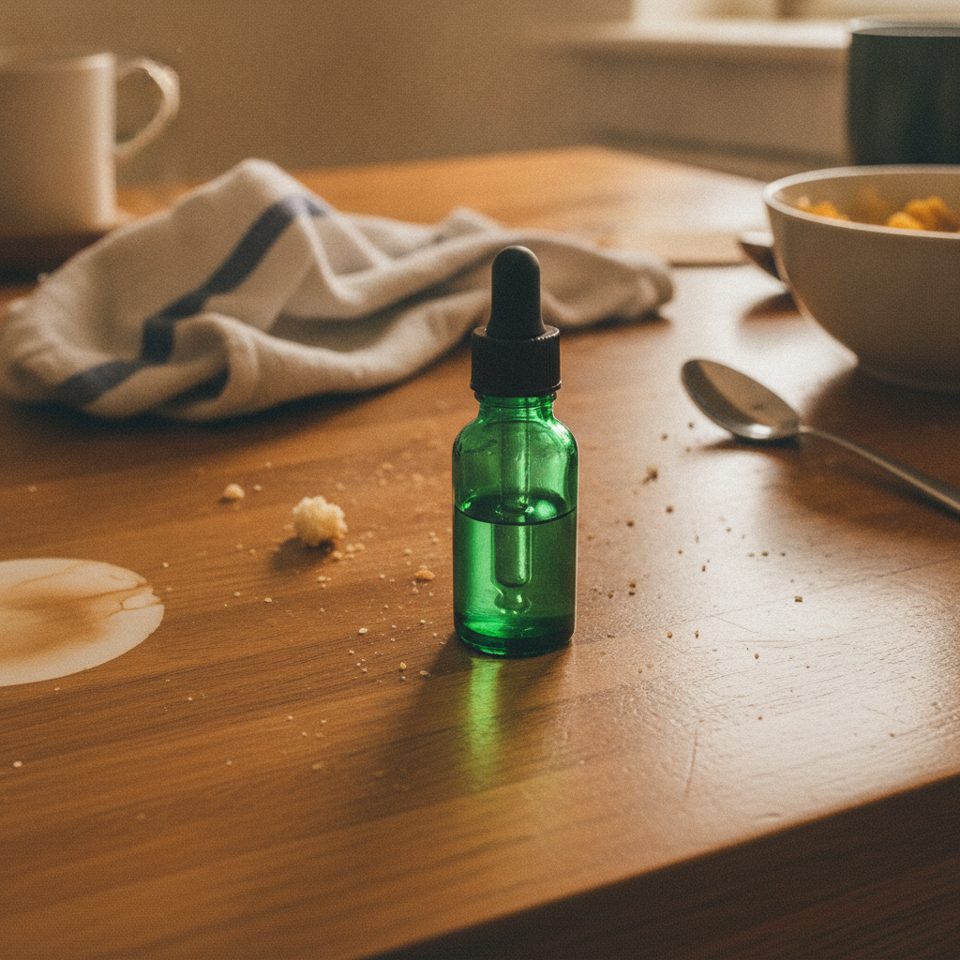
This is a workable starting point: the table is a mess, but the bottle itself is sharp and well lit.
Main image vs. lifestyle images
Most listings need two kinds of photos, and they do different jobs.
The main image shows up in search results and category pages. It should be simple: the product alone, on a clean background, filling most of the frame. Its job is to be recognizable at thumbnail size and to look trustworthy next to competing listings.
Lifestyle images show the product in context: a serum bottle on a bathroom shelf, a mug on a breakfast table, a watch on a wooden desk. They help the shopper picture owning the product, and they show scale and use. These usually go in the later image slots, on product pages, in ads and on social media.
A strong listing uses both: one clean main image, then several lifestyle and detail shots.
Choosing a scene and adding instructions
The AI Product Photo tool has five scene presets, each suited to a different use:
- White studio: a plain white background with soft studio lighting. Use it for main images and anywhere a marketplace asks for a clean, neutral look.
- Marble: a marble countertop. Works well for skincare, cosmetics, jewelry, candles and other premium items.
- Nature: an outdoor setting with natural light. Good for outdoor gear, drinks, and natural or organic products.
- Kitchen: a kitchen counter. Use it for food, coffee, cookware, kitchen tools and small appliances.
- Luxury: a richer, darker backdrop. Suits watches, perfume, leather goods and gift sets.
You can also type optional instructions to fine-tune the scene. Keep them short and concrete: "add a few coffee beans next to the bag", "warmer evening light", "a sprig of eucalyptus on the left", "shadow falling to the right". One or two changes per image work better than a long list.
Then pick an aspect ratio. Use 1:1 for most marketplace listings, 3:4 or 9:16 for stories and vertical feeds, and 16:9 or 4:3 for website banners and email headers.
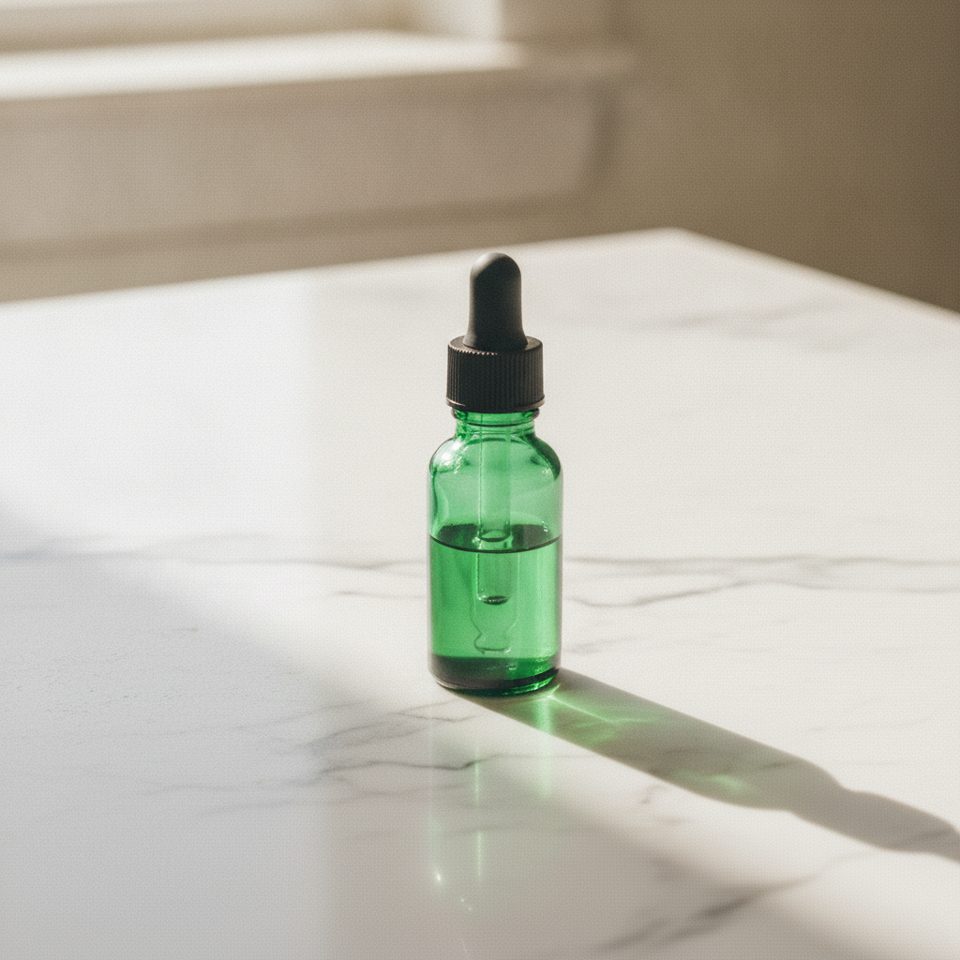
The same bottle with the Marble scene: the clutter is gone, and the light and shadow match the new surface.
Changing or whitening the background
Sometimes you already have a photo you like and only want a different background. The AI Background Changer replaces the background of any photo, either from a preset or from your own description, such as "plain light gray wall" or "pure white background".
Two things to know:
- The output is a full photo with the new background, not a cutout. If you need the product on white, ask for a white background directly.
- For a white main image, describe it plainly: "pure white background, soft even light, small natural shadow under the product". Then check the corners in an image editor to make sure the white isn't light gray.
Removing distractions
A good product shot can be ruined by a charging cable, a speck of dust or a prop you forgot to move. The AI Object Remover lets you describe what to remove in plain words: "remove the cable on the left", "remove the dust spots on the lid", "remove the price sticker".
For edits that don't fit a preset, like changing the light, adding a reflection or moving a prop, the Nano Banana editor edits the photo from a single text instruction. If you're not sure how to phrase a request, our guide to Nano Banana prompts has examples you can adapt.
Don't use these tools to hide real defects. A scratch or dent on the item is something the buyer deserves to see.
Keeping a consistent look across your catalog
A store where every product sits on a different background, in different light, looks unplanned. Set a few rules and stick to them:
- Pick one scene for main images, usually White studio, and use it for every product.
- Pick one or two scenes for lifestyle images that fit your brand. A skincare brand might use Marble everywhere; a coffee roaster might use Kitchen.
- Reuse your instructions. Keep a note of the exact wording that gave you a result you liked, and paste it for the next product.
- Use the same aspect ratio per placement, for example 1:1 for every listing and 9:16 for every story.
- Shoot source photos the same way. Same window, same time of day, same angle.
For a background mood no preset covers, sketch ideas with the AI Image Generator. It creates images from text, so use it for backdrops and mood boards, never to depict your actual product.
Checking your AI product photos before you publish
AI can change things you didn't ask it to touch, especially small details. The tool is instructed to keep your product's shape, colors, logo and label text unchanged, but you should still zoom in on every image and check:
- Logos: Is the logo the right shape, color and position?
- Small label text: Ingredient lists, sizes and fine print can come out slightly changed or garbled. If they do, generate again or use an angle where the label is larger.
- Colors: Compare the image with the real product in daylight. A lighting scene can shift a color, and a navy bag that now looks black is a return waiting to happen.
- Proportions: Is the product the right size next to any props? A 30 ml bottle shouldn't look like it holds a liter.
- Edges and details: Handles, straps, caps, buttons and see-through parts are where errors tend to hide.
If something is off, generate again. Each image costs 30 credits, and failed generations are refunded automatically. See pricing for credit packs.
Marketplace rules to keep in mind
Every platform has its own image requirements, and they change. A few are well established:
- Amazon main images need a pure white background, and the product should fill about 85% of the frame.
- On Amazon, lifestyle and in-use images belong in the additional image slots, not the main image.
For everything else, check each platform's current image requirements before you upload, whether you sell on Amazon, Etsy, eBay or elsewhere. Rules can differ by category.
Honesty: show the product the buyer will receive
AI makes it easy to make a product look better than it is. Resist that. Misleading images lead to returns, bad reviews and, on many platforms, removed listings.
- Color: The image should match the real color. If a scene shifts it, regenerate.
- Size: Don't use props or angles that make the product look bigger than it is. Add an in-hand photo or list the dimensions.
- Included items: Don't show accessories or props as if they come in the box when they don't. If a scene adds coffee beans next to a grinder, make sure nobody could think the beans are included.
A simple test: if a buyer opened the box and held the product next to your photo, would they feel misled? If the answer is yes, change the photo.
FAQ
Can AI product photography replace a professional photographer?
For many small sellers it covers the everyday work: clean main images, simple lifestyle shots and seasonal restaging. Shoots with models, motion or very precise styling still benefit from a photographer, and plenty of brands use both.
Can I use AI product photos commercially?
Yes. Results can be used commercially, subject to the terms of service. It's still up to you to make sure each image is accurate and follows each marketplace's rules.
What if the AI changes my label or logo?
Small text and fine logo details are the parts most likely to change. Generate again, try a sharper and closer source photo, or use an angle where the label is larger. Never publish an image where the label is wrong.
Do I need special equipment?
No. A recent phone, a window and a plain surface are enough. Sharp focus, soft light and a clean product matter more than any gear.
Try it with your own product
Pick one product, take three or four photos by a window, and upload the best one to Pictura's AI Product Photo tool. Use the White studio scene for your main image, then try Marble or Kitchen for a lifestyle shot. Check the details, and compare the results side by side with your current listing.