Relight Photos with AI
Pick golden hour, studio, neon, moonlight or window light. The subject and composition are kept, and only the light changes.
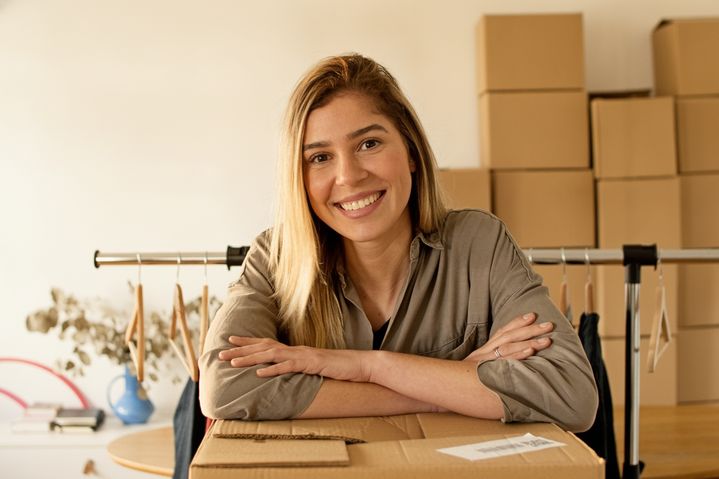
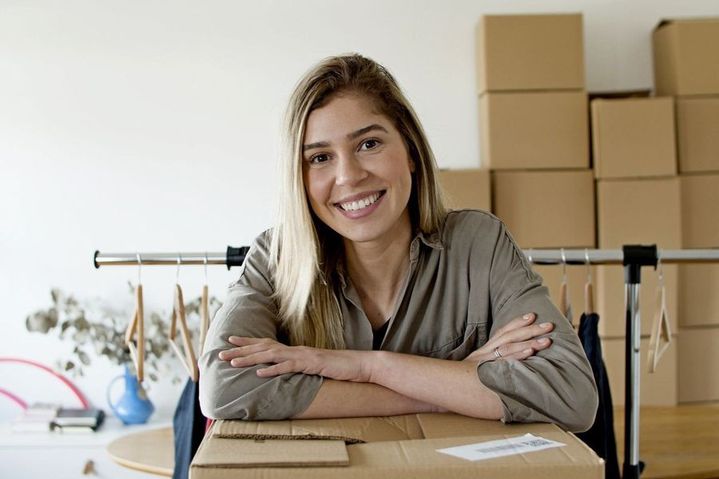 BeforeAfter
How to relight a photo with AI
- 1
Upload a clear photo of a person, a product, a pet or a room.
- 2
Pick a light, and add a direction or mood in the prompt box if you like.
- 3
Download the relit photo and check faces, edges and colors.
Same photo, new light
An AI relight photo tool changes the lighting in a picture without changing what's in it. Upload a portrait, a product shot, a pet or an interior, then choose a light: warm golden hour sun, clean studio lighting, colorful neon, cool moonlight or soft window light. The tool is instructed to keep the subject, pose and composition as they are and change only the light, shadows and color of the scene. You can add notes such as “light from the left” or “stronger contrast.” Use it to rescue a flat, dull photo, give several images one look, or see a product at a different time of day. New light can shift skin tones and small details, so check the result before you use it.
What the AI relight tool does well
Five lighting looks
Golden hour, studio, neon, moonlight and window light cover warm, clean, colorful, cool and soft moods. Try the same photo with several of them to see which one fits.
Subject and composition kept
The tool is instructed to change only the light and leave the people, objects and framing as they are. Check faces and small details, since new shadows can shift them slightly.
Shadows that follow the light
The AI redraws highlights, shadows and reflections to match the new light source, which looks more natural than a filter that only tints the whole picture one color.
Direct it with a short note
Add a direction or mood in plain words, such as “light from the right” or “softer shadows,” to fine-tune the preset without learning any lighting or editing software.
Ways to change the lighting
Portraits and profile photos
Turn a selfie taken under harsh ceiling lights into a soft window-lit portrait, or add warm golden hour light to an outdoor photo taken on a gray day.
Product photos
Give the same product photo a clean studio look for a listing and a warm or neon mood for ads and social posts, without setting up lights again.
Rooms and interiors
See a room in morning window light or a cozy evening glow, for home decor posts, design ideas or simply to get a feel for how the space looks at night.
Creative and social posts
Give an ordinary street photo a neon night look or a moonlit mood for posts, album covers and video thumbnails, while the original scene stays in place.
Tips to change lighting in a photo
Start with a sharp, well-exposed photo. Very dark or blurry images give the AI little detail to work with, and noise can turn into blotches under the new light.
Pick a light that suits the scene. Golden hour and moonlight fit outdoor photos, while studio and window light usually look more natural for portraits and products shot indoors.
Say where the light comes from, such as “light from the left, slightly behind the camera.” A clear direction gives more natural shadows than vague words like “better lighting.”
For a set of product or portrait photos, use the same light and the same note for each one, so the whole set looks like it was shot in one session.
Simple, credit-based pricing
Every tool runs on the same credits. One image is 30 credits, and failed generations are refunded.
Starter
For occasional photos
- About 75 images per month
- 2,250 credits
- All 34 AI image tools
- Commercial use
- Failed generations refunded
Plus
For busy shops and creators
- About 150 images per month
- 4,500 credits
- All 34 AI image tools
- Commercial use
- Failed generations refunded
- Priority support
Business
For teams, agencies and high volume
- About 300 images per month
- 9,000 credits
- All 34 AI image tools
- Commercial use
- Failed generations refunded
- Dedicated support
Monthly and yearly plans renew automatically at the end of each period until you cancel, and you can cancel anytime in Settings. Credit packs are one-time purchases that never renew; their credits last 1 year. Prices include tax.
AI relight photo FAQ
- Will relighting change my face or my product?
- The tool is instructed to keep the subject, pose and composition and change only the lighting. New shadows and colors can still make small details look different, so compare the result with the original before you use it.
- Which light should I choose?
- Golden hour gives warm, low sunlight. Studio gives clean, even light for portraits and products. Neon adds a pink and blue glow. Moonlight gives a cool night look, and window light gives soft daylight from one side.
- Can I set the direction of the light?
- Yes. Write it in the prompt box, for example “light from the right” or “backlight behind the subject.” The AI combines your note with the light you picked. Results vary, so run it again if the direction is off.
- Can it fix a dark or underexposed photo?
- It can brighten a dim photo by relighting it, but it can't recover detail that was never captured. For blurry or noisy photos, try the AI Photo Enhancer first, then relight the result.
- Does the background change too?
- The place stays the same, but its light changes along with the subject, so a room or a street may look warmer, darker or more colorful. To move the subject somewhere new, use the AI Background Changer.
- What kind of photo works best?
- A sharp photo with a clear subject and moderate contrast. Photos with very strong existing shadows or several colored lights are harder to relight. Uploads can be JPG, PNG or WebP, up to 10MB.
- How much does it cost?
- Each image costs 30 credits, shown on the Generate button. Failed generations are refunded automatically. Results are standard 1K resolution, saved in My Images, and can be used commercially, subject to our terms.
- Are my photos private?
- Your uploads are only used to create your result. Uploaded originals are deleted from the processing service within 24 hours. Prompts and images are moderated, and photos of people need consent from everyone in them.
More AI tools
All tools
AI Image Generator
Describe what you want, choose a model, and turn your text into a 1K image.
Image to Image
Upload one to four images, describe what you want, and get a new 1K image built from them.

AI ID Photo Maker
Turn one photo of yourself into a formal, front-facing ID-style photo on a white, blue or red background.
AI Product Photo
Turn a simple product snapshot into a studio-quality photo for your store.

AI Headshot Generator
Get a professional headshot for LinkedIn or your resume from one selfie. No photographer needed.
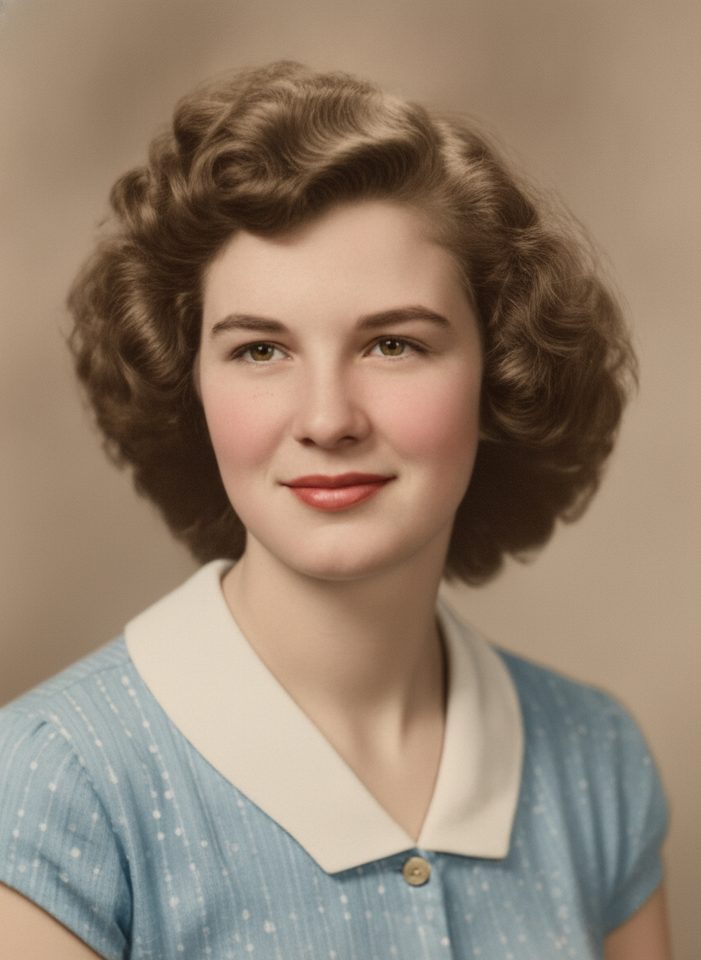
Old Photo Restoration
Remove scratches and fading, sharpen faces and add natural color to black-and-white photos.
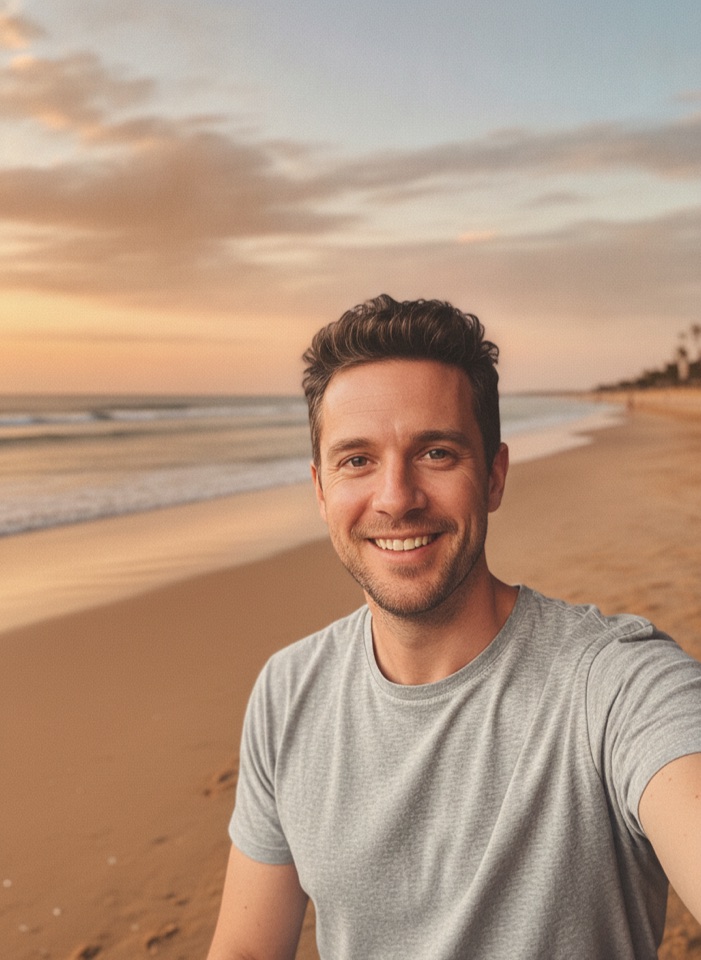
AI Background Changer
Upload a photo, pick a new background or describe your own, and the subject is kept as it is.
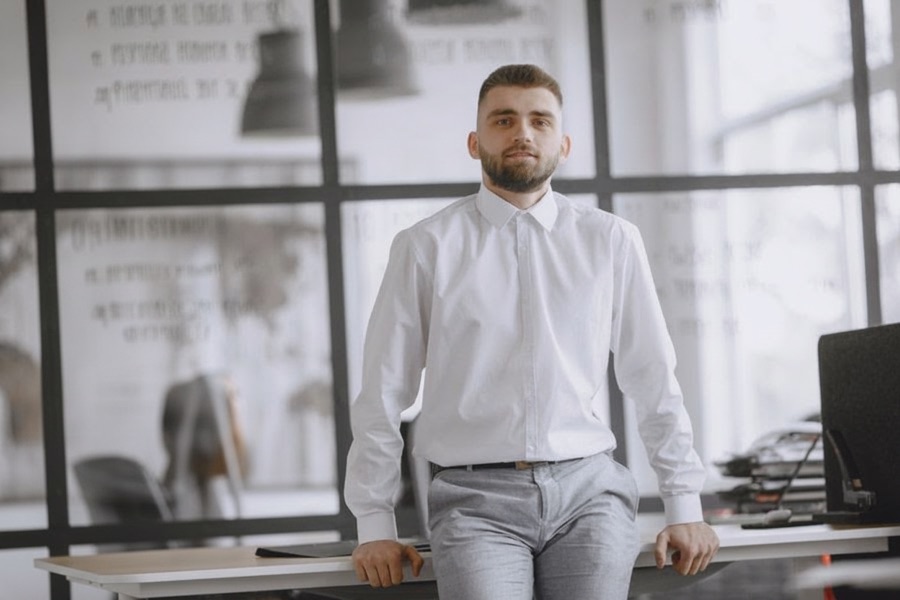
AI Object Remover
Type what you want gone, like a stranger or a trash can, and the AI removes it and fills in the background.
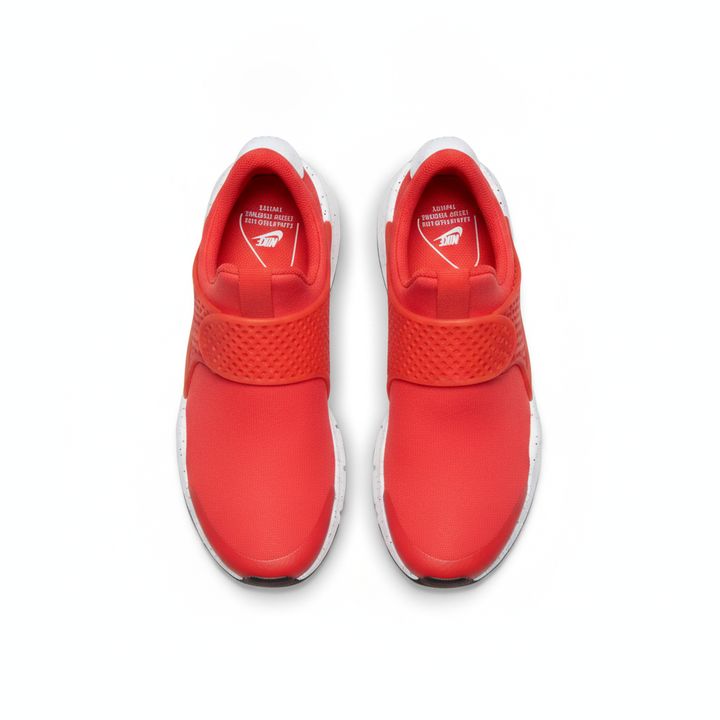
White Background Maker
Upload a product snapshot and get it back on a clean, plain background with a soft shadow, ready for your store.