AI Portrait Retouch
Upload a portrait and get smoother skin, a more even tone and brighter eyes, with the shape of your face left as it is.
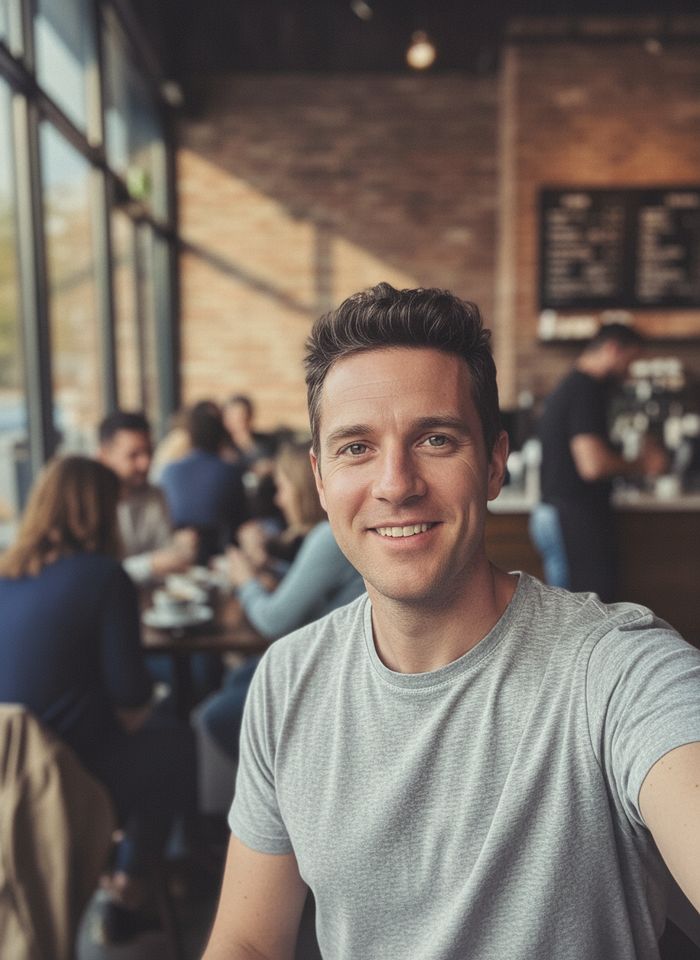
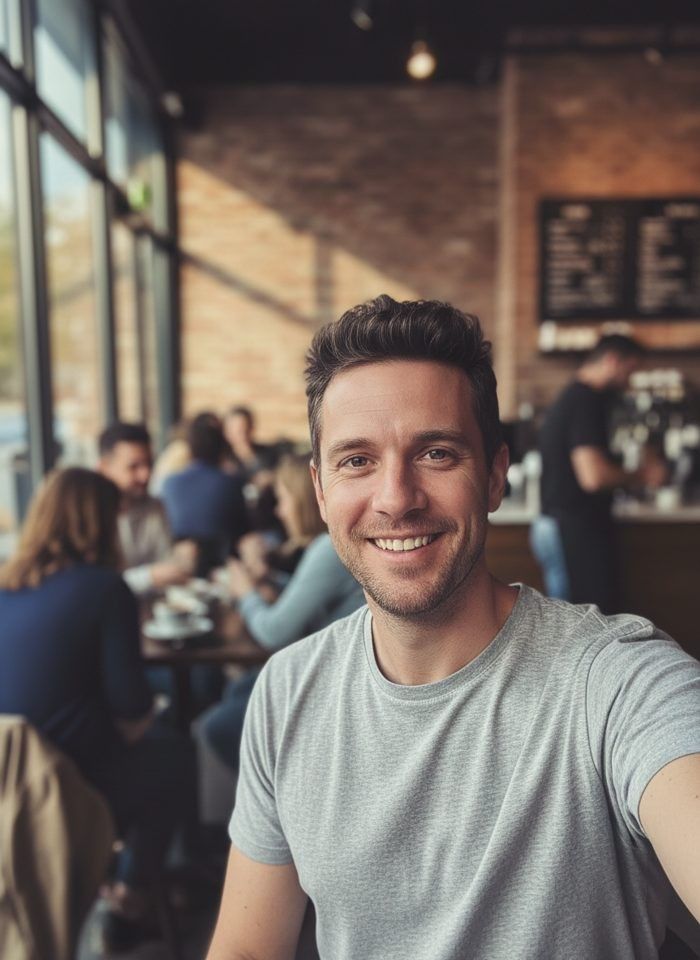 BeforeAfter
How to retouch a portrait with AI
- 1
Upload a clear, well-lit portrait or selfie.
- 2
Choose natural, soft or polished retouching.
- 3
Check the result and download your retouched photo.
Skin retouching that still looks like you
This AI portrait retouch tool does the routine skin work that usually takes a careful hand in a photo editor. Upload a portrait or selfie and pick a strength. The AI smooths skin while keeping some texture, evens out redness and uneven tone, softens blemishes and dark circles, and brightens the eyes a little. It does not slim faces, enlarge eyes, change your nose or jaw, or reshape your body, and it is instructed to keep your features, hair, clothes and background as they are. Natural is a light touch for everyday photos, soft goes a step further, and polished gives a clean, studio-style finish. Compare the result with your original before you post it.
What this AI portrait retouch tool does well
Three strengths to choose from
Natural takes care of small blemishes and redness, soft smooths skin further and evens out tone, and polished gives a clean studio finish. Try two strengths and keep the one you prefer.
No face or body reshaping
The tool only retouches skin, tone and eyes. It is instructed not to slim your face, resize your eyes, change your nose or jaw, or reshape your body.
Skin texture kept
Even at the strongest setting, the aim is skin that still has pores and fine texture, not a plastic filter look that makes a photo obviously edited.
No brushes or sliders
Manual retouching means frequency separation, healing brushes and dodge and burn. Here you upload a photo and pick a strength, and the AI handles the skin work.
When to use AI portrait retouching
Profile pictures
Freshen up a photo for LinkedIn, a dating app or a team page, so a breakout or a tired day doesn't become the picture people remember.
Selfies and social posts
Tidy up skin in a selfie before you post it. The natural setting keeps the edit light enough that friends still see the real you.
Event and family portraits
Retouch graduation, wedding guest and family photos where someone has redness, shine or a blemish, without booking a retoucher for a handful of pictures.
Photographers and creators
Get a quick first pass on client portraits or content shots, then do any finishing work in your usual editor when a photo needs more.
Tips for better AI skin retouching
Start with natural. If a blemish or uneven patch is still visible, run the same original photo again on soft rather than retouching the retouched result.
Use a sharp photo taken in soft, even light, such as near a window. Harsh overhead light and heavy shadows are harder to even out cleanly.
Retouching works best when the face fills a good part of the frame. In a wide group shot, crop to one or two people before you upload.
Retouching does not sharpen a blurry photo. If your picture is soft or noisy, run it through the AI Photo Enhancer first, then retouch the enhanced version.
Simple, credit-based pricing
Every tool runs on the same credits. One image is 30 credits, and failed generations are refunded.
Starter
For occasional photos
- About 75 images per month
- 2,250 credits
- All 34 AI image tools
- Commercial use
- Failed generations refunded
Plus
For busy shops and creators
- About 150 images per month
- 4,500 credits
- All 34 AI image tools
- Commercial use
- Failed generations refunded
- Priority support
Business
For teams, agencies and high volume
- About 300 images per month
- 9,000 credits
- All 34 AI image tools
- Commercial use
- Failed generations refunded
- Dedicated support
Monthly and yearly plans renew automatically at the end of each period until you cancel, and you can cancel anytime in Settings. Credit packs are one-time purchases that never renew; their credits last 1 year. Prices include tax.
AI portrait retouch FAQ
- What does the AI change in my photo?
- It smooths skin, evens out tone and redness, softens blemishes, shine and dark circles, and brightens the eyes slightly. Your features, hair, clothes and background are meant to stay the same, so check the result before you use it.
- Will it make my face thinner or my eyes bigger?
- No. This is skin retouching, not face reshaping. The tool is instructed not to change face shape, eye size, nose, jaw or body. If something looks different, run it again or try a lighter strength.
- Which strength should I pick?
- Natural suits everyday photos and profile pictures where you want a light touch. Soft works for portraits with more blemishes or uneven tone. Polished gives a clean, studio-style finish for headshots and promotional images.
- Can it retouch group photos?
- Yes, but small faces have less detail to work with, and every face gets the same strength. For the best result on one person, crop to them first. Only upload photos of people who have agreed.
- Is this the same as the AI Headshot Generator?
- No. Retouching keeps your original photo, outfit and background and only works on skin, tone and eyes. The AI Headshot Generator creates a new professional headshot with business clothes and a studio background.
- Will the retouched photo be higher resolution?
- No. Results come out at standard 1K resolution, about 1024 pixels on the long side, which suits profile pictures and social posts. The tool does not upscale, so it is not meant for large prints.
- Are my photos private?
- Your photo is only used to create your result. Uploaded originals are deleted from the processing service within 24 hours, and results are saved in My Images in your account. Uploads and results are moderated.
- How many credits does a retouch cost?
- Each retouched image costs 30 credits, shown on the generate button. If a generation fails, the credits are refunded automatically. You can use the results commercially, subject to the terms of service.
More AI tools
All tools
AI Image Generator
Describe what you want, choose a model, and turn your text into a 1K image.
Image to Image
Upload one to four images, describe what you want, and get a new 1K image built from them.
AI ID Photo Maker
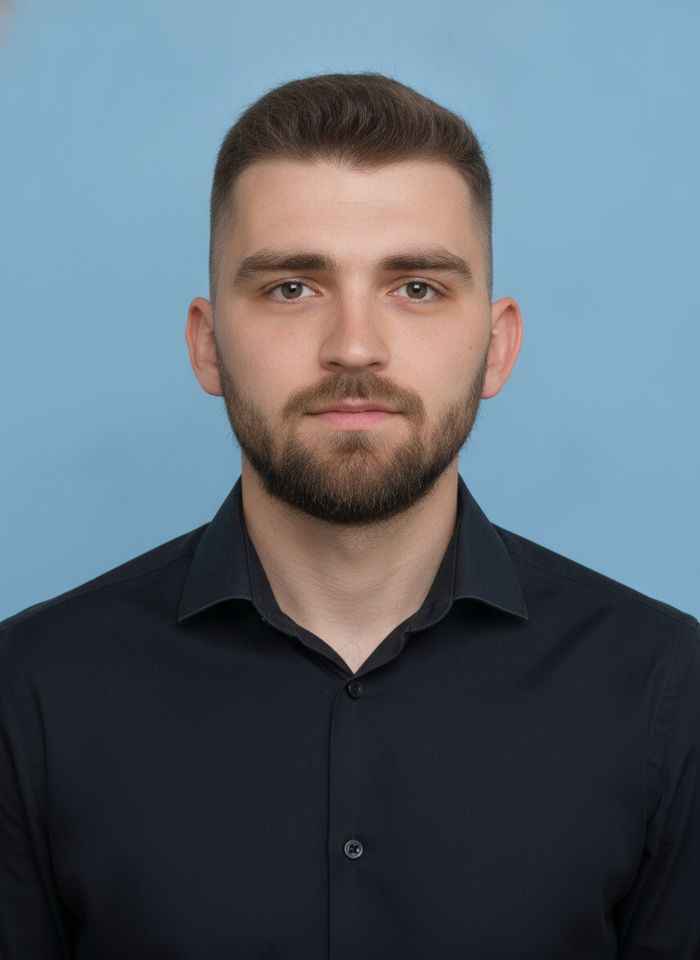
Turn one photo of yourself into a formal, front-facing ID-style photo on a white, blue or red background.
AI Product Photo
Turn a simple product snapshot into a studio-quality photo for your store.

AI Headshot Generator
Get a professional headshot for LinkedIn or your resume from one selfie. No photographer needed.
Old Photo Restoration
Remove scratches and fading, sharpen faces and add natural color to black-and-white photos.
AI Background Changer
Upload a photo, pick a new background or describe your own, and the subject is kept as it is.
AI Object Remover
Type what you want gone, like a stranger or a trash can, and the AI removes it and fills in the background.
White Background Maker
Upload a product snapshot and get it back on a clean, plain background with a soft shadow, ready for your store.