AI Image Extender
Choose a new aspect ratio and the AI continues the scene beyond the edges of your photo.
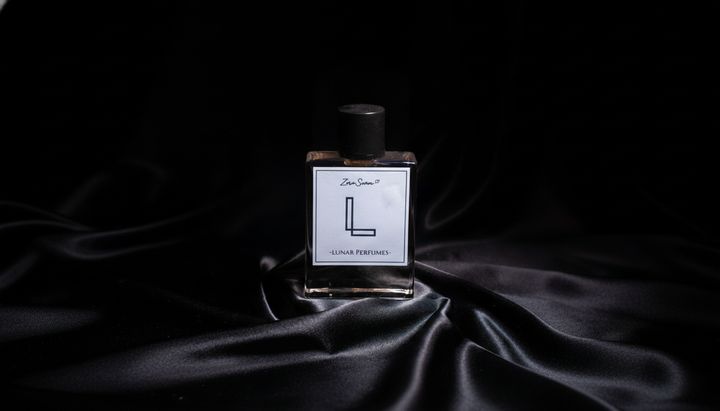
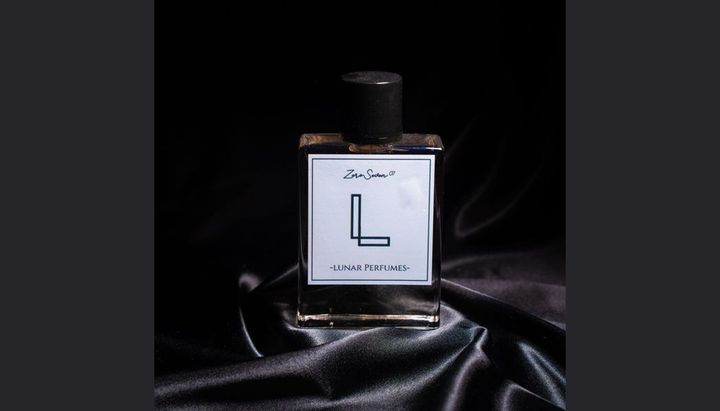 BeforeAfter
How to extend an image with AI
- 1
Upload the photo or image you want to make wider or taller.
- 2
Pick an aspect ratio, and describe what should fill the new space if you like.
- 3
Download the expanded image and check the new edges.
More picture around your subject
An AI image extender adds new picture beyond the edges of a photo, which is also called uncropping or outpainting. Upload an image, pick the shape you need, such as 16:9 for a banner, 9:16 for a story or 1:1 for a square post, and the AI continues the scene: more sky, more floor, the rest of a room or a longer stretch of beach. The tool is instructed to keep the original part as it is and blend the new areas into it. You can describe what should appear in the new space, or leave it to the AI. Results vary at the new edges, so look for repeated patterns, odd objects or a visible seam, and run it again if needed.
What the AI image extender does well
Five aspect ratios
Change a photo to 1:1, 3:4, 4:3, 9:16 or 16:9. Turn a vertical phone photo into a wide banner, or a landscape shot into a tall image for stories.
The original stays in place
The tool is instructed to keep the original part of the image and only add new picture around it. Compare the center with your original before you use the result.
New areas that match
The AI continues lines, light, colors and textures from the original, so a horizon, a wall or a tabletop carries on past the old edge instead of stopping there.
Tell it what to add
Describe what should fill the new space, such as “more sky and sea” or “empty table on the right for text,” or leave it blank and let the AI continue the scene.
Ways to use image expansion
Fit a photo to any format
Make a vertical photo work as a 16:9 video thumbnail or website banner, or a wide photo work as a 9:16 story, without cutting off the subject.
Fix tight crops
Add space around a subject that was framed too close, such as above the head or below the feet in a full-length photo. Check that the added parts look right.
Room for text
Add plain background on one side of a product or portrait photo, so there is space for a headline, a price or a logo in ads, banners and posters.
Wallpapers and frames
Extend a favorite photo to fit a phone or desktop wallpaper, or a frame with a different shape. Output is about 1024 px, so large prints may look soft.
Tips to expand an image with AI
Pick a ratio that is close to the original. Going from 1:1 to 4:3 asks the AI to invent much less than turning a tall 9:16 photo into a wide 16:9 one.
Photos with simple edges, like sky, sand, grass, walls or a studio backdrop, extend most smoothly. Edges that cut through people or text are harder to continue.
If you need empty space, say so: “plain wall on the right, nothing else.” Without a note, the AI may add objects or people you didn't ask for.
Zoom in where the old edge used to be. If you see a seam or a repeated pattern, describe the new area more clearly and run it again.
Simple, credit-based pricing
Every tool runs on the same credits. One image is 30 credits, and failed generations are refunded.
Starter
For occasional photos
- About 75 images per month
- 2,250 credits
- All 34 AI image tools
- Commercial use
- Failed generations refunded
Plus
For busy shops and creators
- About 150 images per month
- 4,500 credits
- All 34 AI image tools
- Commercial use
- Failed generations refunded
- Priority support
Business
For teams, agencies and high volume
- About 300 images per month
- 9,000 credits
- All 34 AI image tools
- Commercial use
- Failed generations refunded
- Dedicated support
Monthly and yearly plans renew automatically at the end of each period until you cancel, and you can cancel anytime in Settings. Credit packs are one-time purchases that never renew; their credits last 1 year. Prices include tax.
AI image extender FAQ
- What is uncropping or outpainting?
- Both words mean the same thing: the AI paints new picture outside the original frame and continues the scene, so the image becomes wider or taller. This tool does it with the aspect ratio you pick.
- Will the original part of my photo change?
- The tool is instructed to keep the original area as it is and blend the new parts into it. Small details can still shift, especially faces near the edges, so compare the result with your original.
- Which aspect ratios can I choose?
- 1:1, 3:4, 4:3, 9:16 and 16:9. Pick the shape of the place where the image will go, such as 16:9 for a YouTube thumbnail, 9:16 for stories and short videos, or 1:1 for a square post.
- Why do the new edges sometimes look wrong?
- The AI has to invent everything outside the original frame, so results vary. Repeated patterns, extra objects or a visible seam can appear. A clearer description of the new area, or another run, usually helps.
- Can I choose what appears in the new space?
- Yes. Describe it in the prompt box, for example “more beach and a clear sky” or “an empty table on the left.” Leave it blank to let the AI continue the scene on its own.
- Does it make my image higher resolution?
- No. This tool adds more scene, not more pixels. Results are standard 1K resolution, about 1024 px, so the original part may look softer than a large source photo. Uploads can be JPG, PNG or WebP, up to 10MB.
- How much does it cost?
- Each image costs 30 credits, shown on the Generate button. Failed generations are refunded automatically. Every result is saved in My Images and can be used commercially, subject to our terms.
- Are my images private?
- Your uploads are only used to create your result. Uploaded originals are deleted from the processing service within 24 hours. Prompts and images are moderated, and photos of people need consent from everyone in them.
More AI tools
All tools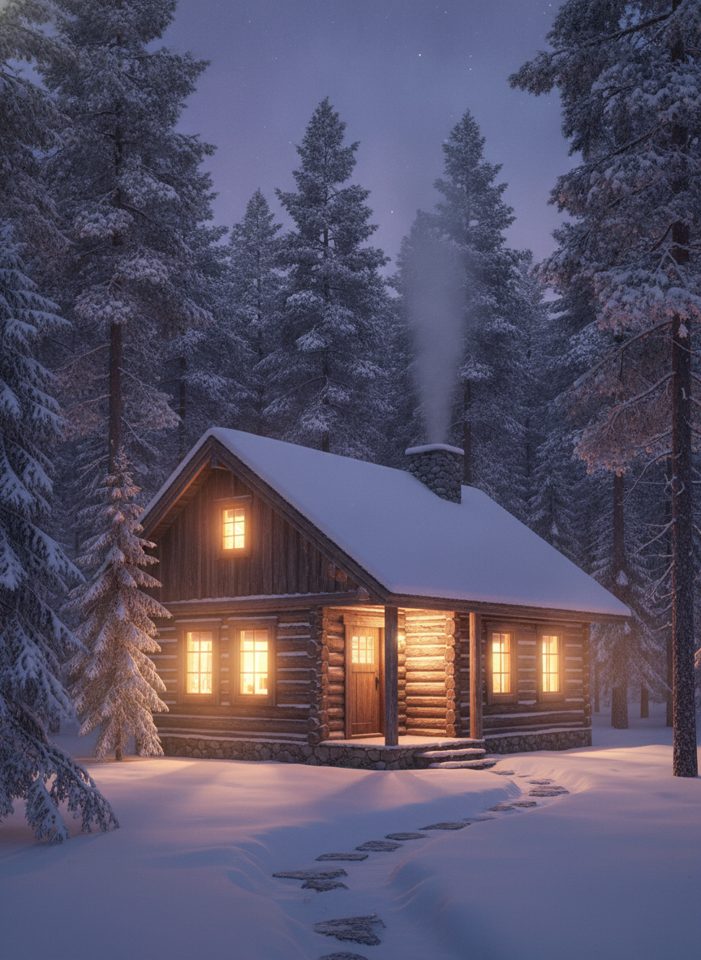
AI Image Generator
Describe what you want, choose a model, and turn your text into a 1K image.
Image to Image
Upload one to four images, describe what you want, and get a new 1K image built from them.
AI ID Photo Maker
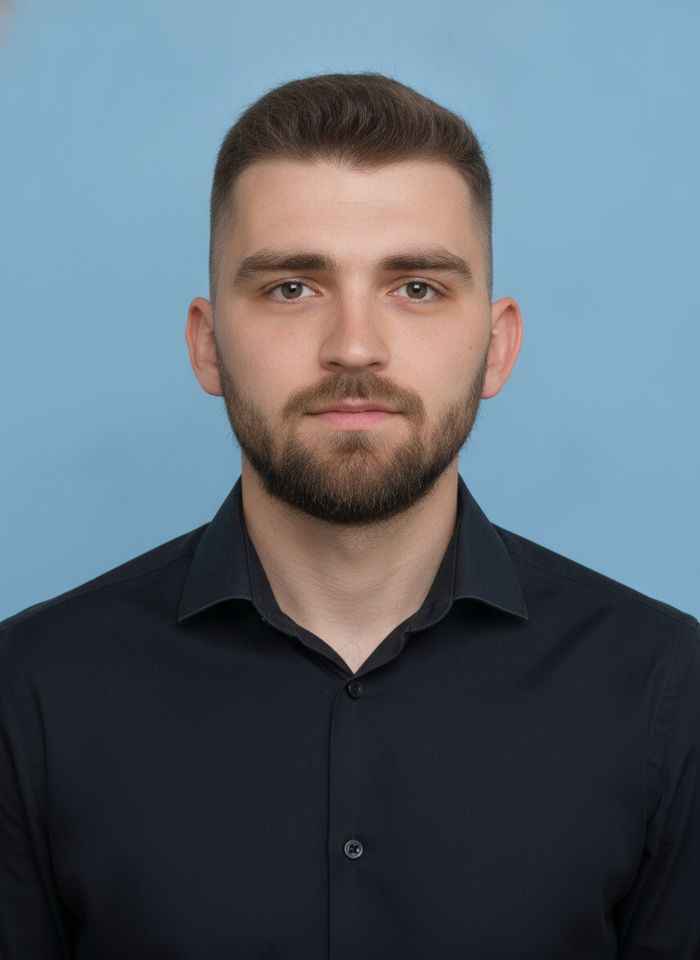
Turn one photo of yourself into a formal, front-facing ID-style photo on a white, blue or red background.
AI Product Photo
Turn a simple product snapshot into a studio-quality photo for your store.

AI Headshot Generator
Get a professional headshot for LinkedIn or your resume from one selfie. No photographer needed.
Old Photo Restoration
Remove scratches and fading, sharpen faces and add natural color to black-and-white photos.
AI Background Changer
Upload a photo, pick a new background or describe your own, and the subject is kept as it is.
AI Object Remover
Type what you want gone, like a stranger or a trash can, and the AI removes it and fills in the background.
White Background Maker
Upload a product snapshot and get it back on a clean, plain background with a soft shadow, ready for your store.